Optimize daily tasks by summarizing communications, preparing for your day, and sending a follow-up email.
You’ll perform three tasks:
- Summarize communications using Microsoft 365 Copilot Chat.
- Plan your day using Microsoft 365 Copilot Chat.
- Draft a follow-up email using Copilot in Outlook.
NOTE: Sample prompts are provided to help you get started. Feel free to personalize them to suit your needs—be creative and explore! If Copilot doesn’t deliver the result you want, refine your prompt and try again. Enjoy the process and have fun experimenting!
Task 1: Summarize communications
Using Microsoft 365 Copilot Chat, catch up on emails, chats, and meetings from specific leaders and stakeholders. Focus on identifying key discussions, action items, and updates to ensure you’re fully informed and ready to respond.
Steps:
- Open a new browser tab and navigate to M365copilot.com.
-
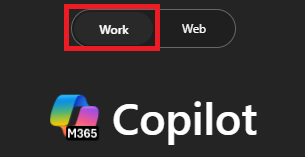
Ensure the “Work mode” tab is selected in Copilot Chat:
Sample Prompt:
NOTE: Replace [Name of Person] with the person you’re focusing on. Use the / character (slash) to reference internal contacts for quick access to recent interactions.
Task 2: Prepare for your day
Using Microsoft 365 Copilot Chat, plan your day and review upcoming meetings. Create a to-do list or categorize your meetings to ensure they align with your priorities. Focus on organizing your schedule to stay prepared and productive.
Sample Prompt:
Task 3: Draft a follow-up email
Using Copilot in Outlook, draft an email requesting updates or additional information on a recent topic or discussion. Provide any context needed to ensure clarity and alignment.
Steps:
-
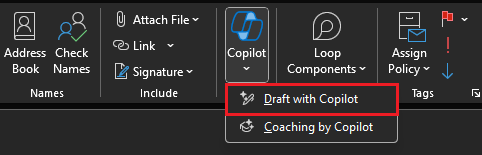
In Outlook, select New Email and then from the ribbon select Copilot > Draft with Copilot
Sample Prompt:
[Insert a one- to two-sentence summary or details here.]