🎯 Learning Objectives
- Save and reuse legal-specific prompts for daily productivity
- Use Copilot Memory and Custom Instructions to personalize Copilot for legal work
- Research regulations like the EU AI Act using Copilot Chat in Web mode
- Draft an executive summary in Word grounded on Copilot Chat research
- Communicate findings and recommendations to leadership via Copilot in Outlook
- Apply advanced prompting techniques to interpret legal language and run scenario analyses
📋 Demo Setup
There are no sample documents required for this demo.
Part 1: Copilot Basics — Save Prompts & Customize Copilot
Practice 1: How to Save Prompts in Copilot
Saving prompts helps you quickly reuse instructions or queries without having to rewrite them each time.
Step 1: Save a Prompt
- Open a new browser tab and navigate to M365copilot.com.
- Start by running a prompt, for example:
- Hover over the prompt.
- Click Save Prompt.
- Give it a name for easy reference.
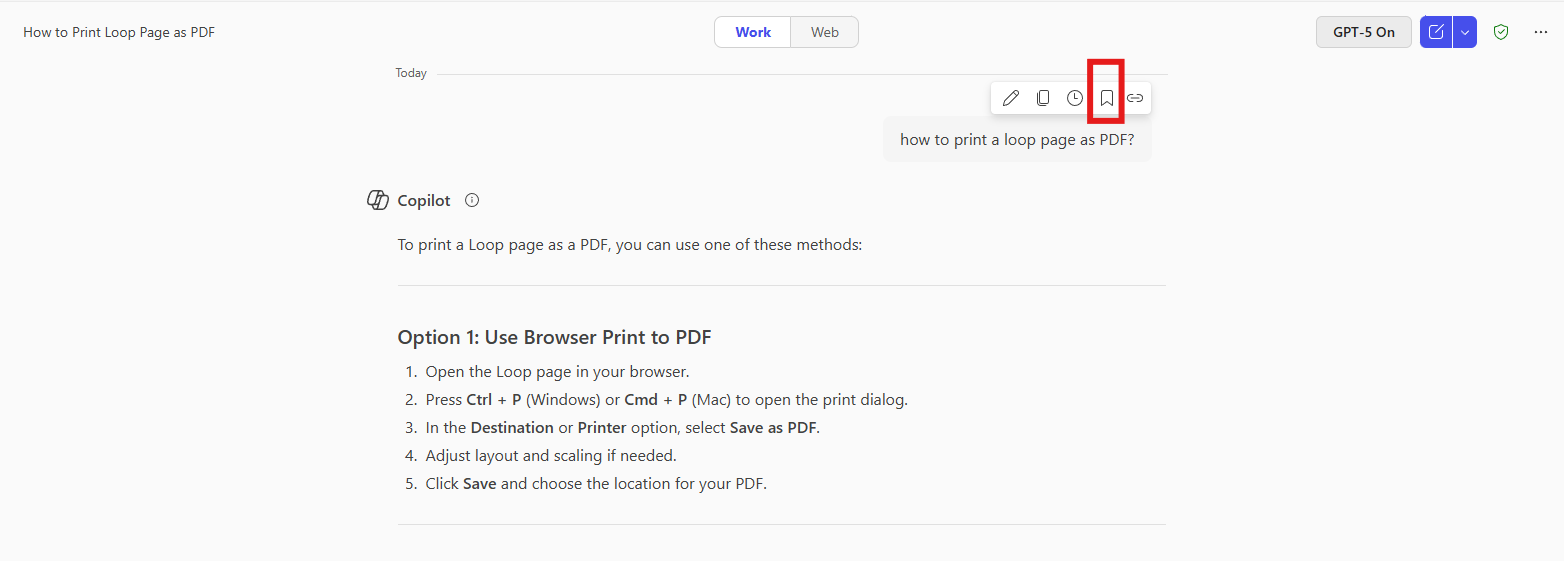
- Use clear names for prompts (e.g., "Weekly Legal Catch-Up", "Contract Clause Review").
- Share the most frequently used prompts with your team to maintain consistency.
- Regularly review and update saved prompts to keep them relevant.
Step 2: Access your saved Prompts
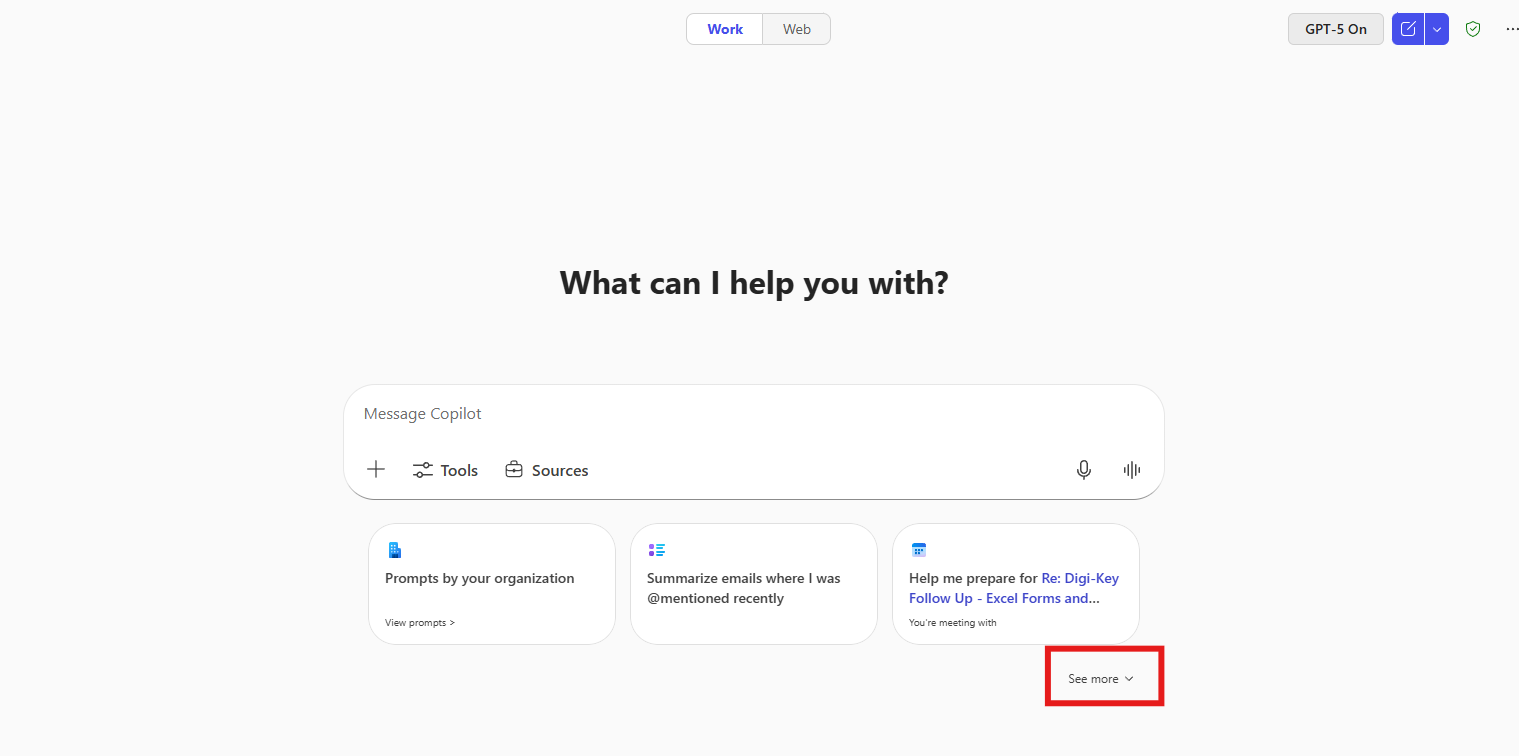
- Open Copilot.
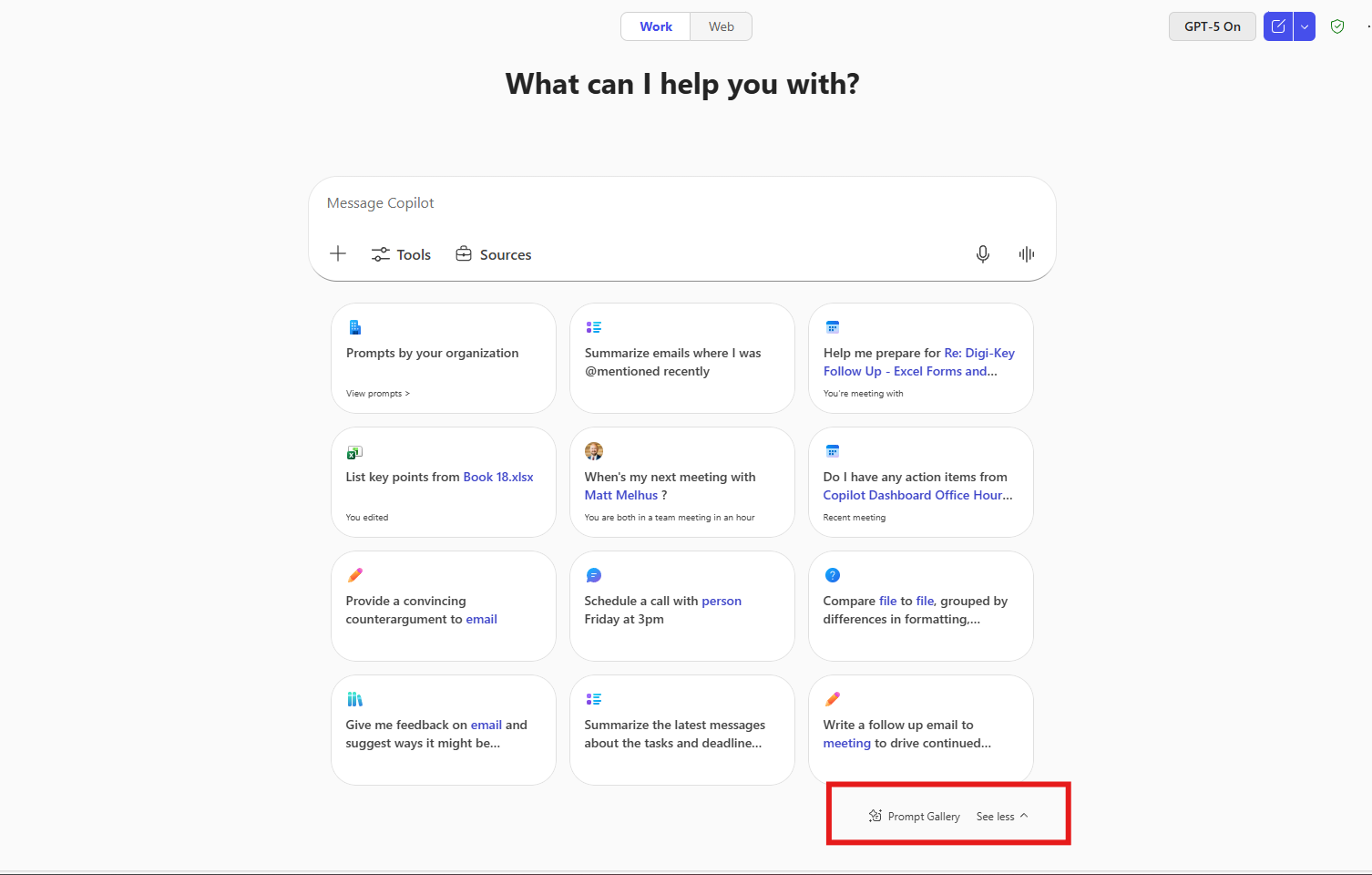
- Click See more.
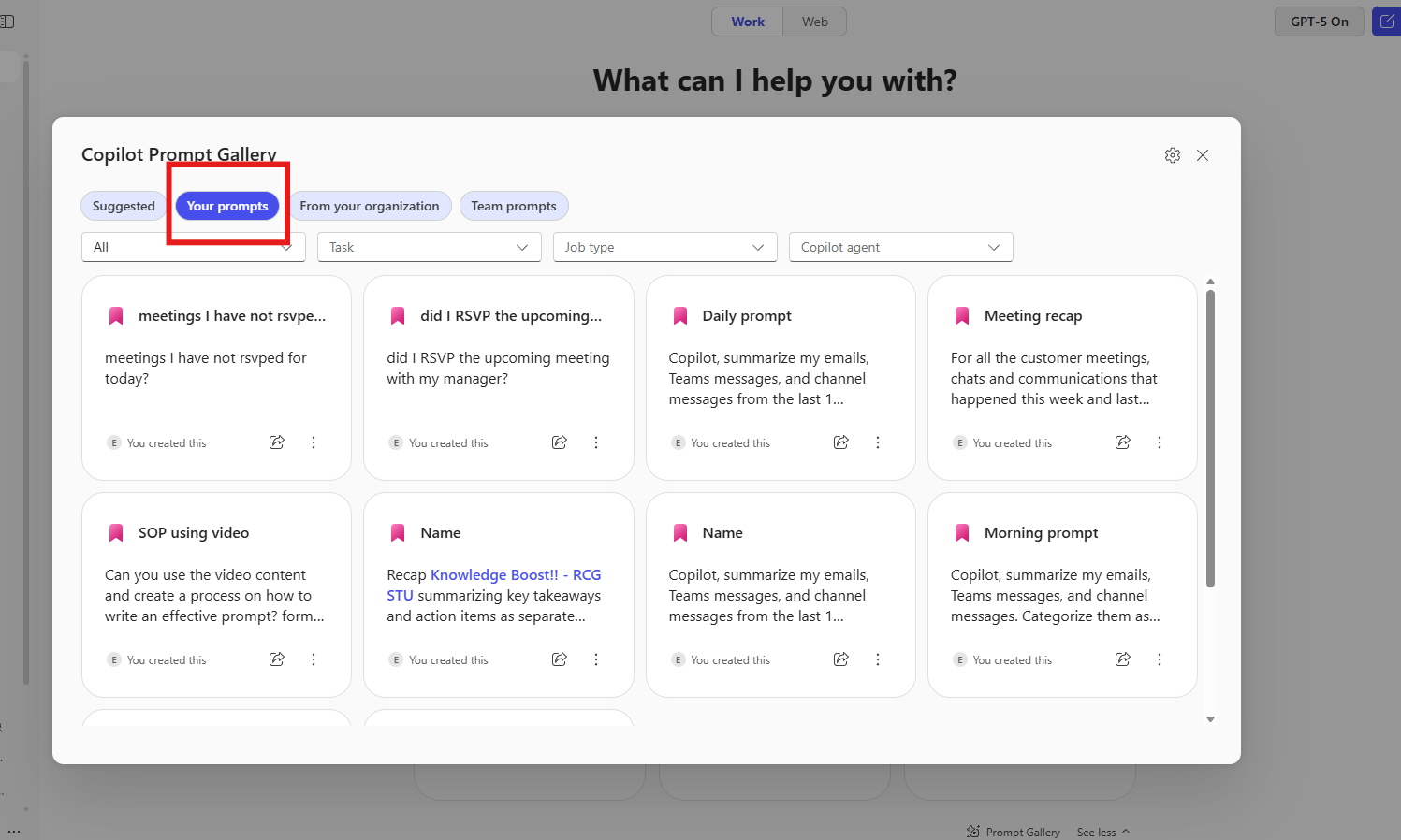
- Select Prompt Gallery.
- Go to Your prompts — from here, you can delete prompts, share them via link, or share them with a team.
Practice 2: Memory and Customization of Copilot
Copilot Memory offers a more personalized experience based on your previous chats, work profile, custom instructions, and other metadata. Copilot Customization uses this information to create tailored interactions — for example, you can tell Copilot your writing style so AI-generated drafts sound more like you.
Step 1: Access Copilot
Open a new browser tab and navigate to Copilot (or use your usual method to access Copilot).
Step 2: Add instructions
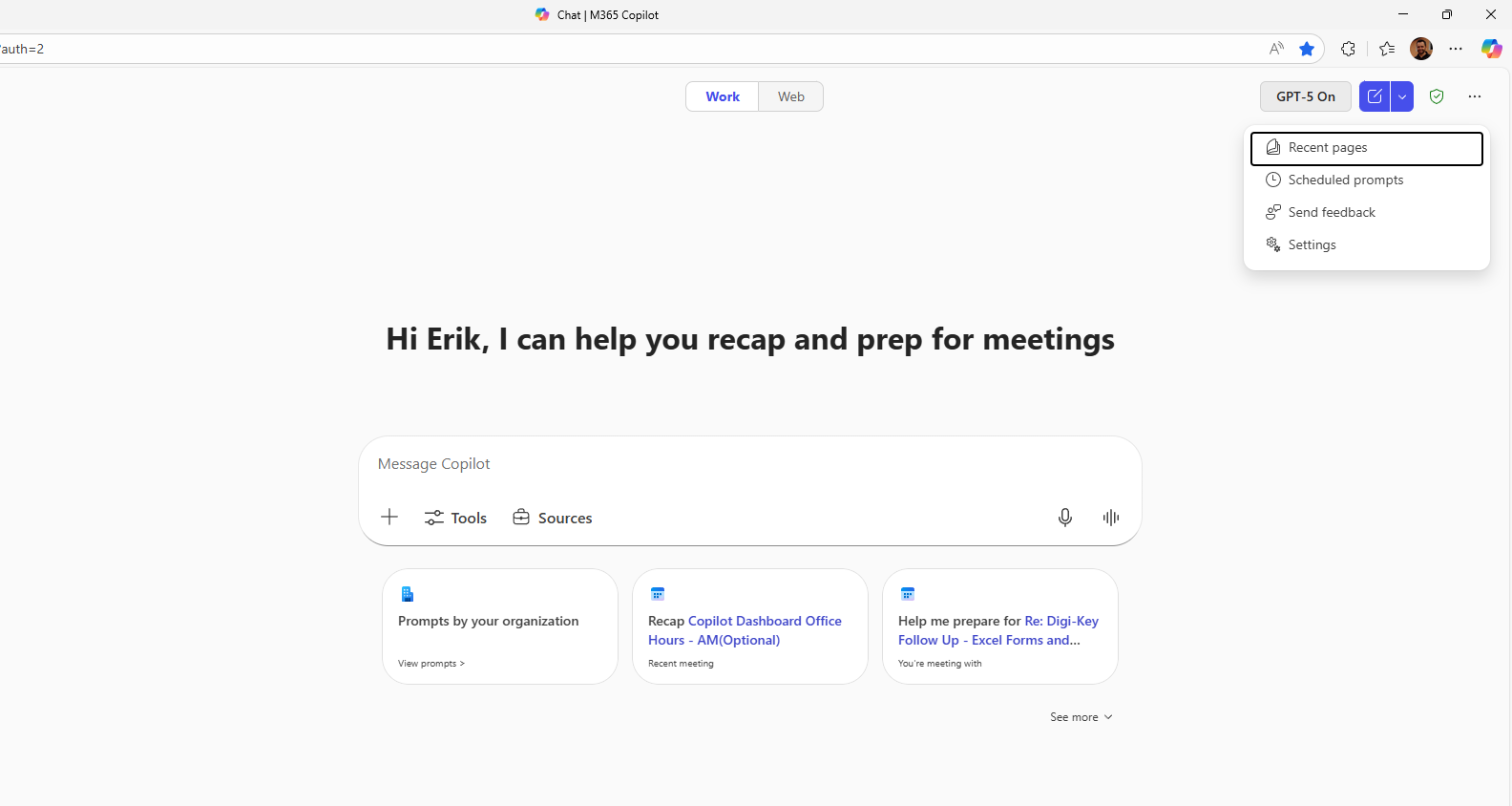
- Click on the settings by selecting "…"
- Open Settings and select Personalization.
- Then select Custom Instructions.
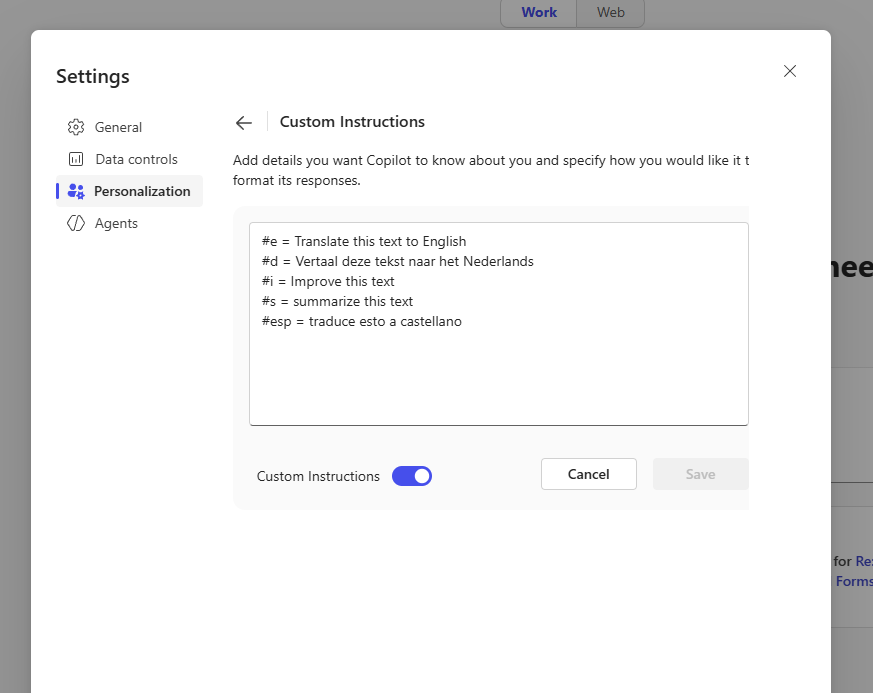
You can add your custom instructions in this section. For reference, here's a guide with sample instructions you can add to Copilot:
✅ Self-Check: Part 1
Part 2: Copilot Chat — Research the EU AI Act
Let's start by researching the AI Act and its potential impact on Contoso's AI hiring tool.
- Open a browser and navigate to M365copilot.com.
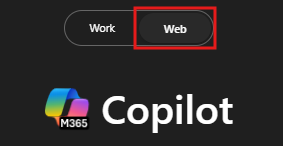
- Ensure Web Mode is selected.
- In the prompt window, type the following:
- Review Copilot's response and take notes on relevant legal risks and compliance requirements.
- Now ask Copilot a series of follow-up questions to gather more information:
- Now ask Copilot to summarize all the information so far:
- Select the hyperlink Copilot provides for the new Word document to open it.
- Once opened, select Enable Editing and then turn on AutoSave. Select your OneDrive account when prompted.
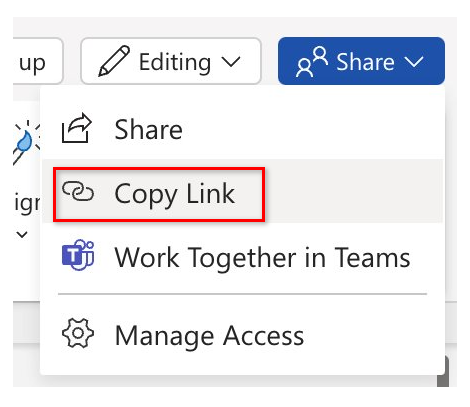
- Copy the shared URL for use in the next step.
✅ Self-Check: Part 2
Part 3: Copilot in Word — Executive Summary
Now, we'll draft an executive summary outlining legal risks and recommendations for Contoso's leadership.
- Open a new instance of Word, either in your browser or desktop application.
- In the "Describe what you'd like to write" prompt box, type the following:
- Review Copilot's output. Before selecting Keep it, refine the response by asking Copilot:
Other optional refinements:
- Ask Copilot to reword sections for a more professional tone.
- Request a shorter, more concise version if the summary is too long.
- Expand with additional sections.
- After reviewing and finalizing the document, copy the generated Executive Summary to your clipboard for use in the next demo.
✅ Self-Check: Part 3
Part 4: Copilot in Outlook — Communicate with Leadership
Lastly, we'll draft an email to Contoso's leadership summarizing our findings and next steps.
- Open Outlook (either in your browser or desktop application).
- Select New Email.
- Select Copilot in the ribbon. From the drop-down menu, choose Draft with Copilot.
- In the "What do you want this email to say?" prompt window, type:
- Once the draft is generated, you can use the Adjust feature to modify the tone, length, or level of formality.
✅ Self-Check: Part 4
Part 5: Additional Sample Prompts
Lawyer's Second Copilot Prompt: Plain-English Summary
Lawyer's Third Copilot Prompt: Scenario Analysis
🔑 Key Takeaways
Research Faster
Use Copilot Chat in Web mode to summarize regulations and identify compliance obligations in minutes.
Chain Your Tools
Chat to research → Word to draft → Outlook to communicate. End-to-end legal workflow without context switching.
Iterate, Don't Accept First Draft
Refine and follow up. Copilot gets better with each iteration — treat it as a conversation, not a one-shot answer.
AI Assists, You Decide
Copilot accelerates research and drafting, but legal judgment and final review remain with you.